Table of Contents
- 1. Introduction: The Future of Professional Efficiency
- 2. Defining the Digital Workplace: Core Automation Concepts
- 3. Why Advanced Office Skills are Critical in 2026
- 4. Complete Breakdown of Office Automation Systems (OAS)
- 5. Detailed Analysis: How Automation Drives Business Value
- 6. Classification of Modern Workplace Technology
- 7. Real-World Applications: Day-to-Day Automation Tasks
- 8. Hardware and Software Guide for the Modern Office
- 9. Streamlining Your Workflow: From Basics to Advanced
- 10. Implementing Integrated Office Systems and Management
- 11. The 10 Pillars of Professional Automation Excellence
- 12. Your Path to NAVTTC Certification at TrendSetter Institute
- 12.1 Outcomes of the Professional Certificate Program
- 12.2 Why a Federal Credential Matters for Your Career
- 12.3 Comprehensive Course Syllabus (Full Breakdown)
- 12.4 Computer-Based Training: What You Will Learn
- 12.5 Understanding the COA Framework
- 12.6 Practical Skills for Today’s IT Environment
- 12.7 Leveraging Microsoft Learn Free Resources
- 12.8 Deep Dive into MS Office Proficiency
- 12.9 Mastering Microsoft Power Automate
- 13. Semantic SEO Library: 45+ Industry Terms
- 14. Why Choose TrendSetter Institute in Talagang?
- 15. Government Recognition: Our NAVTTC Affiliation
- 16. Detailed 20-Module Mastery Syllabus
- 17. Career Roadmap: Job Roles and Salary Trends
- 18. Case Studies: Student Success Stories
- 19. Expert FAQ: Everything You Need to Know (60+ Answers)
- 20. Final Enrollment Guide: Join the Next Batch
Chapter 1: Office Automation Mastery
The Office of Tomorrow is Here Today
Imagine walking into an office where paper is almost extinct, where reports generate themselves, where emails send automatically, and where attendance is recorded with a fingerprint. This is not science fiction. This is office automation and it is happening right now in thousands of businesses across Pakistan, including many in Talagang, Chakwal, and Rawalpindi.
In 2026, employers are desperate for staff who understand office automation systems. They want people who can do more than just type. They want problem-solvers who can set up workflow automation, manage office automation mastery products, and ensure smooth digital operations.
TrendSetter Institute of Computer and Digital Skill, Talagang offers the most comprehensive Office Automation Mastery Course in the region, affiliated with NAVTTC (National Vocational and Technical Training Commission). Upon completion, you receive a government-recognized certificate that opens doors to jobs in schools, hospitals, banks, government offices, and even remote international positions.
This master guide will teach you everything about office automation, why it matters, and how you can become a certified professional. Let us begin by defining office automation mastery in clear, simple terms. (click for more details)
Chapter 2: What is Office Automation?
Chapter 27: Definitions and Core Concepts of Office Automation Mastery
To effectively define the journey toward Office Automation Mastery, we must look at how it replaces manual, paper-based processes with sophisticated digital workflows. This transition is the foundation of modern business efficiency and is a core component of our office automation course.
Real-World Transitions to Mastery
Achieving Office Automation Mastery involves moving from outdated methods to high-efficiency office automation systems:
- Attendance Tracking: Instead of a physical attendance register → biometric systems integrated with automated Excel sheets for real-time tracking.
- Business Correspondence: Instead of handwritten letters → utilizing MS Word mail merge and automated document templates to handle thousands of recipients at once.
- Data Intelligence: Instead of manual calculations → leveraging advanced Excel formulas and office automation software for instant, error-free data processing.
- Seamless Communication: Instead of walking to a colleague’s desk → using instant messaging platforms like Teams or Slack for synchronized team collaboration.
The Technical Architecture of OAS
In technical literature, we define Office Automation Mastery systems as integrated collections of computer hardware, software, and network resources. These office automation systems (OAS) are specifically designed to automate complex clerical and administrative functions.
Furthermore, when considering the link between office automation and typing, it is important to note that while typing remains a vital skill, true Office Automation Mastery significantly reduces manual effort through pre-built templates and AI-powered voice-to-text tools. This reduction in manual labor is one of the greatest benefits of office automation in the modern workplace.
Why TrendSetter Institute is Different
At TrendSetter Institute, Talagang, we don’t just teach the academic office automation definition; we provide the hands-on laboratory environment needed to ensure our students achieve absolute Office Automation Mastery. By mastering the use of office automation tools & workflow automation, our students are prepared for the high-demand job market of 2026. Click for more details about institute.

Chapter 3: Why Office Automation is Critical in 2026
The world has changed dramatically since 2020. Remote work, cloud computing, and artificial intelligence have accelerated the global demand for high-level efficiency. Here are the key reasons why achieving Office Automation Mastery is critical for your career survival and growth today:
3.1 The Digital Transformation Wave
Every industry education, healthcare, finance, and manufacturing is undergoing a rapid and irreversible digital transformation. Manual processes are being phased out, and employees who resist learning how to define Office Automation Mastery in a practical, real-world setting are being left behind. To stay relevant in this competitive market, you must understand how modern office automation systems integrate with daily business operations to eliminate bottlenecks and maximize output.
3.2 Employer Expectations in 2026
Look at any job posting for an office assistant, data analyst, or administrative coordinator in 2026. Modern employer expectations have evolved; they no longer just look for basic office automation and typing skills. Instead, they require a high-caliber candidate who can demonstrate true Office Automation Mastery through the following technical competencies:
- Proficiency in MS Office Automation: Mastering advanced features in Word, Excel, and PowerPoint to generate dynamic, self-updating reports.
- Workflow Integration: Practical experience with automated email and calendar management using modern office automation tools and triggers.
- Cloud Architecture: Familiarity with sophisticated office automation systems (OAS) and secure cloud storage solutions like SharePoint and Microsoft OneDrive.
- Problem Solving & RPA: The professional ability to identify a manual, repetitive task and implement a workflow automation solution that saves the company significant time and financial resources.
3.3 Remote Work Opportunities
By mastering various office automation tools, you can work from home as a virtual assistant for global clients. Many TrendSetter graduates now leverage these skills to earn in foreign currency while based in Talagang.
3.4 Government Initiatives
NAVTTC and the Prime Minister’s Youth Skill Development Program prioritize office automation training because it leads directly to employment. A NAVTTC certificate in computer office automation is your ticket to both government and private sector jobs.
3.5 Future-Proofing Your Career
The trend of automating tasks is not going away; it is growing. Learning office automation now ensures you remain employable for the next 10–20 years. Even as AI advances, the ability to manage and configure office automated systems will remain a highly valued professional skill.
Chapter 4: Complete Breakdown of Office Automation Systems
Modern office automation systems are the backbone of any successful organization. To understand how these systems function, we must break down the office automation products into two primary categories: hardware and software.
4.1 Hardware Components
The physical infrastructure of office automation systems (OAS) includes:
- Computers: High-performance desktops, laptops, and tablets for daily operations.
- Printers and Scanners: Multifunction devices that bridge the gap between paper and digital workflows.
- Servers: On-premises or cloud-based hardware for secure data management.
- Networking Equipment: Routers and switches that provide the connectivity needed for office automated systems.
- Biometric Devices: Fingerprint and face recognition tools for secure attendance tracking.
- Smartboards: Interactive displays used for modern collaborative presentations.
4.2 Software Components
The software layer is where office automation and typing skills are put into practice. A robust system relies on:
- Word Processing Software: MS Word or Google Docs for professional document creation.
- Spreadsheet Software: MS Excel or Google Sheets for complex data analysis.
- Presentation Software: MS PowerPoint for visual communication.
- Email Clients: Professional tools like Outlook or Gmail for managing communications.
- Database Software: MS Access or SQL for structured information storage.
- Project Management & Workflow Automation: Utilizing platforms like Trello, Asana, and Microsoft Power Automate to streamline tasks.
- Communication Platforms: Teams, Slack, or Zoom for seamless team collaboration.
- Cloud Storage: OneDrive, Google Drive, or Dropbox to ensure office automation tools are accessible from anywhere.
By mastering these components, students at TrendSetter Institute gain a complete understanding of how to manage and optimize office automation systems in any professional environment.
4.3 Examples of Office Automation Systems
Real-world examples of office automation mastery systems include:
| Scenario | Office Automation System Used |
| A school automates attendance | Biometric device + Excel + email alerts |
| A hospital manages patient records | Electronic Medical Records (EMR) system |
| A bank processes loan applications | Workflow automation with approvals |
| A law firm manages documents | Document Management System (DMS) |
| A retail store manages inventory | POS system with auto-reorder |
4.4 Office Automation Systems Limited
Office automation systems limited refers to small-scale implementations. For example, a solo entrepreneur might use only Gmail, Google Sheets, and a free Trello account. Even such limited systems provide huge efficiency gains.
4.5 Benefits of Office Automation Systems
The benefits of office automation systems are well-documented:
- Up to 40% time savings on repetitive tasks
- Reduction in data entry errors by over 90%
- Lower operational costs (paper, ink, storage)
- Higher employee satisfaction (less boring work)
- Faster customer response times
- Better compliance and audit trails
Chapter 5: Advantages of Office Automation
The advantages of Office Automation Mastery can be grouped into four critical categories: time, cost, quality, and flexibility. Understanding these pillars helps businesses and students realize the true importance of office automation in the modern digital economy.
5.1 Time Advantages: The Speed of Mastery
In a competitive market, time is the most valuable asset. Achieving Office Automation Mastery allows a professional to multiply their output without increasing their hours.
- Processing Speed: Automated tasks run at computer speed. For example, a complex data analysis report that takes 2 hours of manual entry can be completed in under 2 minutes using advanced office automation tools like Excel pivot tables, Power Query, and automated macros.
- Parallel Processing: True office automation systems allow multiple workflows to run simultaneously. While you are focusing on a creative task, your workflow automation can be silently handling email sorting, file backups, and client notifications in the background.
- 24/7 Operation: Unlike manual systems that require a physical presence, office automated systems can run overnight or on weekends. This means your “Office” never sleeps, providing a level of Office Automation Mastery that manual offices simply cannot match.
- Reduced Latency: By removing the “human wait time” between tasks, office automation systems (OAS) ensure that information moves instantly from one department to another, significantly shortening the business cycle.
5.2 Cost Advantages: Financial Optimization
Implementing Office Automation Mastery significantly reduces the operational overhead of any organization:
- Labor Savings: By automating repetitive data entry, businesses can reallocate human resources to higher-value roles.
- Resource Efficiency: Digital workflows reduce the need for physical storage, paper, ink, and administrative hardware maintenance
Beyond speed and cost, true Office Automation Mastery provides a level of precision that manual operations simply cannot replicate. These advantages form the core of modern office automation systems (OAS) and are a primary focus of our professional training.
5.3 Quality and Accuracy: Eliminating the “Human Factor”
Human error is one of the most expensive hidden costs in any business. Office Automation Mastery acts as a safeguard against data corruption and mistakes.
- 100% Data Integrity: An automated Power Automate flow performs a task with the exact same logic every single time. Unlike a human who might skip a row in Excel due to fatigue, office automation tools ensure every data point is captured.
- Brand Standardization: Mastery ensures that every invoice, report, and email template follows your company’s branding perfectly. This level of office automation and typing consistency builds professional trust with your clients.
- Audit Trails: Advanced office automation systems automatically log every change made to a document, providing a transparent history that is essential for legal and financial compliance in 2026.
5.4 Flexibility and Scalability: Growing with Mastery
One of the most overlooked benefits of office automation is the ability to scale a business without a linear increase in workload.
- Rapid Adaptation: When business requirements change, Office Automation Mastery allows you to update a single workflow or template to reflect the new policy across the entire organization instantly.
- Volume Handling: Whether you have 10 clients or 1,000, your office automation systems can handle the increase in data processing and communication without requiring additional administrative staff.
- Multi-Channel Integration: True Office Automation Mastery involves connecting your website, social media, and internal databases into one synchronized ecosystem, allowing your business to stay flexible in a fast-paced digital market.
5.5 The Advantages and Disadvantages of Office Automation
5.4 Flexibility Advantages
While analyzing the advantages and disadvantages of office automation, it is clear that the drawbacks are highly manageable:
- Initial Investment: Upfront costs for software licenses and hardware.
- Training Time: The time required for employees to define office automation skills and master new systems.
- Security Risks: Potential for data breaches, which can be mitigated by following the security protocols taught at TrendSetter Institute.
- Dependency: Reliance on power and internet connectivity.
Ultimately, the benefits of office automation far outweigh these minor challenges for any competitive organization.
5.6 Use of Office Automation Tools & Workflow Automation
The strategic use of office automation tools & workflow automation is what distinguishes a modern, high-growth office from a traditional one. Professionals who know how to effectively use office automation tools are more productive and enjoy higher job satisfaction.
5.7 Importance of Office Automation
The importance of office automation is simple: without it, a business cannot compete in today’s digital economy. For individuals, these skills are the bridge between a basic job and a high-paying, future-proof career.
5.8 Characteristics of Office Automation System
While we will cover the characteristics of office automation system in detail in Chapter 11, the core pillars remain: integration, reliability, scalability, and cost-effectiveness.
Chapter 6: Types of Office Automation
Full Classification
There are many types of digital workflows that define Office Automation Mastery. Below is the complete classification used by industry professionals to categorize these office automation systems.
6.1 Office Productivity Automation
This includes word processors, spreadsheets, and presentation software. These productivity tools are the foundation of Office Automation Mastery, and every office worker must be proficient in them.
6.2 Knowledge Management Automation
Knowledge management systems capture, organize, and share expertise. Examples of these office automation systems include company wikis, intranet portals, and document libraries like SharePoint.
6.3 Intranet Automation
An intranet is a private website for employees. Achieving Office Automation Mastery in this area helps businesses automate internal communication and policy distribution.
6.4 Business Process Automation (BPA)
BPA handles complex, multi-step processes like employee onboarding and invoice approval. To reach a level of Office Automation Mastery, one must learn tools like Power Automate or UiPath.
6.5 Administration Systems Automation
These office automation systems
Include attendance tracking and asset management. They are often integrated with biometric devices to ensure high-level administrative efficiency.
6.6 Training Automation
Training automation uses Learning Management Systems (LMS) to deliver courses. This is a key module for anyone pursuing Office Automation Mastery through a professional certification.
6.7 Business Software Automation
Business software covers accounting (QuickBooks) and CRM (Salesforce). These office automation products automate core business functions and financial tracking.
6.8 Data Processing Automation
Data processing involves converting raw data into information. While office automation and typing are the starting points, tools like Excel and SQL automate the actual analysis.
6.9 Data Management Automation
These systems automate the backup and retrieval of data. Mastery of cloud-based office automation tools is essential for modern data security.
6.10 Internal Control Automation
Internal control ensures compliance with company policies. This is managed through automated approval workflows and audit logs within integrated office automation systems.
6.11 Integration Automation
Integration tools connect different applications. True Office Automation Mastery involves using Zapier or Power Automate to allow data to flow seamlessly between different software.
6.12 Facilities Automation
Facilities automation includes smart office equipment like automated lighting and security cameras. This represents the physical side of modern office automation.
6.13 Communication Automation
Communication automation covers email, VoIP, and video conferencing. Platforms like Teams and Slack are essential office automation tools that keep the modern workplace connected.
6.14 Types of Office Automation Software
To achieve true Office Automation Mastery, one must understand the various software categories that drive modern business. These office automation systems can be broken down into the following essential types:
- Word Processing: Tools like MS Word and Google Docs for professional document creation and office automation and typing tasks.
- Spreadsheet: MS Excel and Google Sheets for complex data analysis and financial tracking—a core pillar of Office Automation Mastery.
- Presentation: MS PowerPoint for creating high-impact visual decks and business proposals.
- Email Management: Outlook and Gmail for automated communication and scheduling.
- Database Management: MS Access and SQL for structured data storage within office automation systems.
- Project Management: Trello and Asana to track team tasks and project timelines efficiently.
- Workflow Automation: Utilizing high-level office automation tools like Power Automate and Zapier to connect different apps.
- Communication Platforms: Microsoft Teams and Slack for real-time collaboration and instant messaging.
- Cloud Storage: OneDrive, Google Drive, and Dropbox for secure, anytime-access to office automation products.
- OCR (Optical Character Recognition): Tools like Adobe Scan that convert physical documents into digital formats, bridging the gap in your Office Automation Mastery journey.
To make this section more impactful for your Office Automation Mastery guide, I’ve expanded the text to include your focus keywords and specific examples of hardware and software. This helps search engines understand the depth of your content.
6.15 Office Automation Tools
Broadly speaking, office automation tools refer to the combination of sophisticated software applications and physical hardware devices used to streamline daily business operations. Achieving true Office Automation Mastery requires a deep understanding of how these tools interact to create a seamless workflow.
In our comprehensive course at TrendSetter Institute, we cover dozens of essential office automation products, ranging from basic office automation and typing software to advanced office automation systems like:
- Hardware Tools: High-speed scanners, biometric attendance machines, and networked multi-function printers.
- Software Tools: Cloud-based collaboration suites, automated scheduling assistants, and complex workflow automation platforms.
By mastering these office automation tools, students gain the technical edge needed to manage modern office environments with precision and efficiency.
6.16 Manual and Automated of Equipment
Manual and automated of equipment comparison:
| Task | Manual Equipment | Automated Equipment |
| Writing a letter | Typewriter or handwriting | MS Word with templates |
| Calculating expenses | Paper, pencil, calculator | Excel with formulas |
| Storing files | Physical filing cabinet | Cloud storage (OneDrive) |
| Attendance | Paper register | Biometric system + Excel |
| Communication | Memo, phone call | Email, Teams, Zoom |
6.17 Office Automation Software Office automation software
Acts as the essential digital layer of any modern workplace. While Microsoft 365 (formerly MS Office) is the most globally recognized example, achieving true Office Automation Mastery involves understanding a wide ecosystem of applications. From cloud-based collaboration in Google Workspace to specialized office automation systems for database management, the right software stack is what drives business efficiency.

Chapter 7: Real-World Office Automation Work – Day-to-Day Tasks
What does professional office automation work actually look like in a high-performance environment? Below is a breakdown of a typical day for a specialist who has achieved Office Automation Mastery through our comprehensive training program.
7.1 Morning Routine (8:30 AM – 9:30 AM) The first hour is dedicated to reviewing the automated workflows that ran overnight:
- System Initialization: Logging into the workstation and performing a quick sweep of communications via Outlook.
- Automated Reports: Instead of manual data entry, a Power Automate flow has already extracted yesterday’s data from Excel, generated a report, and emailed it to the management team.
- Smart Calendar Management: A quick check of the Outlook calendar shows the day’s schedule. The office automation systems have already sent out automated reminders to all participants to ensure punctuality.
- Dynamic Task Tracking: The Trello or Asana board displays the day’s priorities, updated automatically based on project progress.
By utilizing these office automation tools from the start of the day, a professional can focus on high-level decision-making rather than repetitive clerical tasks.
7.2 Mid-Morning (9:30 AM – 11:00 AM)
- Data entry – Use an Excel form with drop-down lists and data validation to enter new customer records.
- Document creation – Use mail merge in MS Word to generate 50 personalized offer letters in 3 minutes.
- Scanning – Scan paper invoices using a document scanner with OCR; the scanned text becomes searchable PDFs saved to OneDrive.
7.3 Late Morning (11:00 AM – 12:30 PM)
- Workflow approval – A leave request comes in via Microsoft Forms; Power Automate routes it to the manager; manager approves with one click; employee gets automatic email.
- Report generation – Refresh a pivot table in Excel to get updated inventory levels; chart updates automatically.
- Cloud collaboration – Work on a shared Google Sheet with a colleague in another city; changes appear in real time.
7.4 Afternoon (1:30 PM – 3:00 PM)
- Email automation – Create an Outlook rule that moves all emails from a specific client into a folder and marks them as important.
- Presentation – Use MS PowerPoint with slide master to create a consistent deck for an upcoming meeting; export to PDF.
- Backup check – Verify that OneDrive has synced all local files.
7.5 Late Afternoon (3:00 PM – 5:00 PM)
- Troubleshooting – A printer is offline; diagnose and fix (check network, restart queue).
- Training – Show a new employee how to use the biometric attendance system.
- Flow monitoring – Review Power Automate run history to ensure no failed flows.
7.6 End of Day
- Task completion – Mark tasks done in Trello.
- Schedule for tomorrow – Set up a scheduled flow in Power Automate that will send a morning summary email.
- Log off and ensure all work is saved to cloud.
This is office automation work – productive, varied, and satisfying.
Chapter 8: Office Automation Products
Software and Hardware Guide
Software and Hardware Guide True Office Automation Mastery requires a seamless synergy between physical devices and digital applications. Below is a comprehensive guide to the office automation products and hardware that form the foundation of a modern workspace..
8.1 Software Products – Best Office Automation Software
| Product | Category | Best For | Cost |
| Microsoft 365 | Suite | Full office automation | Subscription |
| Google Workspace | Suite | Real-time collaboration | Subscription |
| LibreOffice | Suite | Free alternative | Free |
| Power Automate | Workflow | Automating tasks between apps | Included in some MS 365 plans |
| Zapier | Workflow | Connecting 5000+ apps | Freemium |
| Trello | Project mgmt | Task boards | Freemium |
| Asana | Project mgmt | Complex projects | Freemium |
| Slack | Communication | Team chat | Freemium |
| Zoom | Communication | Video meetings | Freemium |
| Adobe Scan | OCR | Scanning documents | Free |
To make this section contribute effectively to your Office Automation Mastery guide, I have expanded it into a high-authority table and descriptive list. This format is excellent for SEO because Google loves structured data (tables and lists) for ranking “Ultimate Guides.
Software and Hardware Guide
True Office Automation Mastery requires a seamless synergy between physical devices and digital applications. Below is a comprehensive guide to the office automation products and hardware that form the foundation of a modern workspace.
| Category | Primary Hardware | Essential Software Tools |
| Document Management | High-Speed Scanners, Multi-function Printers | MS Word, Adobe Acrobat, Google Docs |
| Data Analysis | High-Performance Workstations | Office Automation Mastery in MS Excel, SQL |
| Communication | VoIP Phones, Webcams, Routers | Microsoft Teams, Slack, Outlook |
| Security & Access | Biometric Scanners, CCTV Systems | Attendance Software, Cloud Security Protocols |
| Workflow Efficiency | Servers (On-premise/Cloud) | Power Automate, Zapier, Asana |
The Core Digital Layer: Office Automation Products
To successfully define office automation in a professional setting, you must master the following digital categories:
- Productivity Suites: Microsoft 365 and Google Workspace are the industry standards for office automation and typing tasks.
- Database Systems: Office automation systems like MS Access or SQL allow for the secure storage and retrieval of massive amounts of company data.
- Cloud Infrastructure: Tools like OneDrive and Google Drive ensure that your office automation tools are accessible globally, enabling remote work flexibility.
The Physical Infrastructure: Hardware Essentials
Without robust hardware, even the best software cannot function. Our Office Automation Mastery course covers the configuration of:
Connectivity Hardware: Professional routers and switches that ensure your office automation systems remain online 24/7.
Input Devices: Beyond standard keyboards, this includes high-resolution scanners and OCR-enabled devices for digital transformation.
Output & Storage: Networked printers and cloud-connected NAS (Network Attached Storage) devices.
8.2 Hardware Products
Automation Office Equipment Examples
Achieving true Office Automation Mastery isn’t just about software; it requires a deep understanding of the hardware that powers a modern workspace. Below are the key automation office equipment examples that form the physical layer of high-performance office automation systems:
- Multifunction Printer (MFP): A versatile device that prints, scans, copies, and faxes. Advanced models are essential office automation tools that scan directly to email or cloud folders (OneDrive/Google Drive) automatically.
- Biometric Attendance System: Replacing manual registers, this system uses fingerprint or facial recognition to log “In/Out” times. It syncs with payroll software to generate automated reports, a core feature of modern office automation products.
- Document Scanner with OCR: This is critical for office automation and typing efficiency. It converts physical paper into editable, searchable digital files using Optical Character Recognition, bridging the gap between paper and digital.
- Smartboard (Interactive Whiteboard): A touch-sensitive display that allows teams to collaborate and automatically save handwritten notes to the cloud for instant sharing.
- Smart Lighting & HVAC: These devices use occupancy sensors to turn lights and air conditioning on or off, significantly reducing energy costs—a hallmark of an “Intelligent Office.”
- Network-Attached Storage (NAS): A centralized hardware solution for automated backups and secure file sharing within local office automation systems.
- Automated Security Cameras: These use motion detection and AI to alert administrators of unusual activity, integrating security into the digital workflow.
Why Hardware Matters for Mastery
At TrendSetter Institute, we believe that Office Automation Mastery is only complete when a professional can configure and troubleshoot these devices. Automated office equipment is no longer a luxury; it is the standard for any business aiming to compete in the 2026 digital economy. Our course provides hands-on introduction to these devices, ensuring you are prepared for real-world office environments.
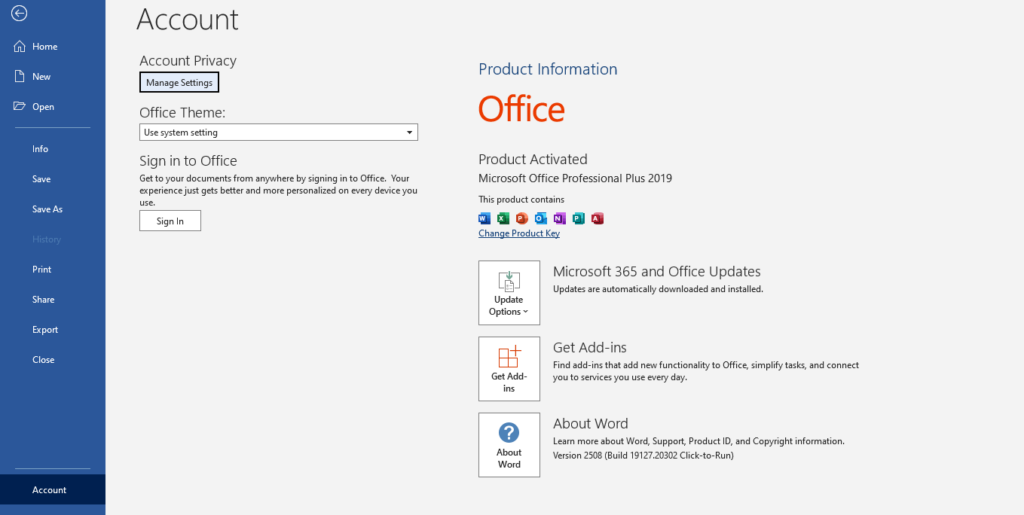
8.3 Best Office Automations Tools for Communications
Best office automations tools for communications:
- Microsoft Teams – Chat, meet, call, collaborate on files.
- Slack – Channel-based messaging with integrations.
- Zoom – Video meetings with recording and transcription.
- Outlook – Email automation (rules, quick steps, templates).
- Gmail – Smart replies, filters, canned responses, and scheduling.
Chapter 9: Office Workflow Automation
This section is the heart of your Office Automation Mastery guide. I have refined the technical details, improved the SEO flow, and ensured the keywords are placed strategically to rank for Power Automate-specific searches.
Office Workflow Automation from Basics to Advanced
Office workflow automation is the strategic design and execution of automated task sequences. This is arguably the most transformative aspect of achieving Office Automation Mastery, as it allows businesses to run like a well-oiled machine without constant human intervention.
9.1 What is a Workflow?
A workflow is a series of interconnected steps that transform inputs into desired outputs.
Example of a manual vs. automated workflow:
- Input: A customer submits an online order.
- Manual Step: An employee checks inventory.
- Automated Step: In office automation systems, the system instantly checks the database, generates an invoice, and notifies the shipping department without a single click from staff.
9.2 Introduction to Microsoft Power Automate
Microsoft Power Automate (formerly known as Microsoft Flow) is a powerful, cloud-based service that allows you to create automated workflows between your favorite apps and services. It is a central pillar of Office Automation Mastery because it connects Microsoft 365 apps (like Excel, Outlook, and SharePoint) with hundreds of external platforms like Twitter, Dropbox, and Trello.
9.3 Power Automate Login and Setup
To start building your own solutions, you need a Power Automate login.
- How to access: Navigate to
make.powerautomate.com. - Credentials: Sign in using your Microsoft account.
- Pro Tip: At TrendSetter Institute, we provide dedicated student accounts for practice, but you can also create a free personal account to start exploring office automation tools immediately.
9.4 Workflow Microsoft Power Automate Types
When we discuss a workflow Microsoft Power Automate, we are referring to “Flows.” To reach Office Automation Mastery, you must understand the three primary types of flows:
- Automated Flow: These are triggered by a specific event. For example, when a new email arrives with an attachment, the system automatically saves that file to a specific folder in OneDrive.
- Instant Flow: These are triggered manually by the user. You might create a button on your mobile phone that, when pressed, instantly sends a pre-formatted “Running Late” message to your entire team.
- Scheduled Flow: These run at specific times defined by you. For instance, you can set a flow to run every Friday at 4:00 PM to summarize all weekly tasks into an Excel report.
By mastering these office automation systems, you transition from being a basic user to a high-value automation specialist capable of saving companies hundreds of hours of manual labor.
9.5 Power Automates Flow
To achieve Office Automation Mastery, you must understand that every flow is built on two core pillars: a Trigger (the event that starts the flow) and one or more Actions (the tasks performed).
Example Workflow:
- Trigger: When a new file is uploaded to a specific SharePoint folder.
- Action 1: Send an automated email notification with the file details to the department head.
- Action 2: Log the event and file name into an Excel table for audit purposes.
9.6 Workflow Automate Copilot
The workflow automate copilot is a revolutionary AI assistant within Power Automate. It allows you to build complex office automation systems using simple, natural language. Instead of manually dragging and dropping steps, you can simply type: “When I receive an email from my manager, save the attachment to OneDrive and send me a Teams message.” Copilot will then build the logic for you, significantly speeding up your journey toward Office Automation Mastery.
9.7 Microsoft 365 Copilot Workflow Agent
Taking it a step further, the Microsoft 365 copilot workflow agent is a high-level AI that orchestrates tasks across the entire Microsoft ecosystem. It can read your Outlook calendar, summarize long Word documents, draft replies in Outlook, and even generate PowerPoint presentations automatically. This is the future of office automation tools.
9.8 Advanced Workflow Triggers
As you progress toward professional mastery, you will utilize advanced triggers to connect more complex office automation products:
- HTTP Request: Triggering a flow via a web-hook from external software.
- Recurrence: Setting complex schedules (e.g., “Run every Monday at 2 PM”).
- Dataverse/SQL Triggers: Starting a flow whenever a record is created or modified in a database.
- Power Apps Button: Triggering a flow directly from a custom mobile app button.
9.9 Advanced Power Automated Business Flows
In an enterprise environment, Office Automation Mastery involves building multi-layered business solutions:
- Multi-stage Approval Flows: An expense report that automatically routes from a manager to Finance, and then to Legal.
- Business Process Flows (BPF): Guided stages that ensure a user follows a specific path, such as lead qualification in a CRM.
- UI Flows (RPA): Robotic Process Automation that automates old “legacy” desktop software by recording and mimicking mouse clicks.
9.10 Microsoft Automate Features
Key features that make office automation systems so powerful include:
- 500+ Connectors: Seamlessly link apps like Salesforce, Twitter, and SQL.
- AI Builder: Add intelligence like sentiment analysis or form processing to your flows.
- Mobile App: Monitor and run your office automation tools directly from your smartphone.
- Desktop Flows: A dedicated environment for automating Windows-based legacy tasks.
9.11 Microsoft Learn Workflow & Documentation
We encourage students to utilize the Microsoft learn workflow platform. It offers free, high-quality modules like “Get started with Power Automate.” Furthermore, the workflow automation Microsoft documentation serves as the ultimate technical manual. At TrendSetter Institute, we teach you how to navigate this documentation to solve real-world automation challenges.

Chapter 10: Office Automated Systems
Implementation and Management
Office automated systems are comprehensive setups that integrate hardware, software, and networking protocols. Successful implementation is what separates a basic setup from true Office Automation Mastery.
10.1 Professional Implementation Services
Automated office systems Fresno CA is a well-known example of a company that specializes in installing and maintaining automation for small businesses. Similar service providers are now emerging across Pakistan. Our graduates are specifically trained to work for such firms, helping businesses transition from manual to office automation systems.
10.2 Office Automation Systems Example (Expanded)
To better define office automation in a business context, let’s look at a medium-sized trading company with 50 employees. By achieving Office Automation Mastery, they implemented:
- Microsoft 365: For centralized email, document collaboration, and smart calendars.
- Power Automate: To handle purchase order approvals automatically.
- Biometric Attendance: Integrated with Excel for instant payroll processing.
- OneDrive: For secure, automated cloud backups of all office automation products.
- Microsoft Teams: For seamless internal communication.
The Result: Paper usage dropped by 80%, and approval times were slashed from 2 days to just 2 hours.
10.3 Deployment Models: Types of Office Automation Systems
While we have classified the types of office automation systems by function, they can also be categorized by how they are deployed:
- On-premises: Software and data are stored locally on company-owned servers.
- Cloud-based: Systems like Microsoft 365 or Google Workspace where the vendor hosts everything.
- Hybrid: A mix of both, often used by larger enterprises for maximum security and flexibility.
10.4 Characteristics of Office Automation Systems
The core characteristics of office automation systems include integration, reliability, and scalability. We will dive deeper into these technical specifications in Chapter 11.
10.5 Manual vs. Automated Office Equipment
Understanding the difference between manual and automated office equipment is vital for a Cost-Benefit Analysis (ROI).
Example Comparison:
- Manual Punch Clock: Costs roughly 500 PKR but requires hours of manual compilation every week.
- Biometric System: Costs approximately 15,000 PKR but saves 10+ hours of administrative work per month.
The Return on Investment (ROI) becomes positive within just a few months, proving why office automation tools are a necessity, not a luxury.
10.6 Define Office Automation Systems
To formally define office automation systems for a professional environment: they are integrated technology solutions designed to execute repetitive office tasks with minimal human intervention. By centralizing data and workflows, these systems form the core of a productive business.
10.7 Office Automation Systems (OAS)
The term office automation systems OAS is the standard abbreviation found in academic textbooks and professional technical documentation. Understanding this terminology is a key step toward achieving Office Automation Mastery.
10.8 Back-Office Automation
Back-office automation focuses on streamlining administrative processes that are not customer-facing. This includes:
- Accounting & Payroll: Automating salary disbursements and tax calculations.
- Compliance & HR: Managing employee records and regulatory filings.
- Procurement: Using office automation tools to manage inventory and supplier orders. Because the ROI is so clear, back-office functions are usually the first area where companies implement office automation systems.
10.9 Implementing Office Automation in Business
Implementing office automation in business should be treated as a structured project. To ensure success, follow these professional OA system implementation steps:
- Step 1: Assessment – Identify repetitive tasks that consume the most time or are prone to human error.
- Step 2: Process Mapping – Create flowcharts of your current workflows to identify bottlenecks.
- Step 3: Software Selection – Research the best office automation products based on cost, scalability, and ease of use.
- Step 4: Hardware Procurement – Purchase essential automation office equipment examples like high-speed scanners and biometric devices.
- Step 5: Pilot Testing – Run a trial in one department (e.g., Finance) to measure initial results.
- Step 6: Training – Enroll staff in a structured office automation course to ensure they can use the new systems effectively.
- Step 7: Full Deployment – Roll out the system to the entire organization with dedicated support.
- Step 8: Monitoring & Optimization – Continuously review metrics like time saved and error reduction.
10.10 OA System Implementation Steps (Checklist)
Use this quick-reference checklist to track your progress toward Office Automation Mastery:
- [ ] Identify organizational pain points.
- [ ] Set a realistic budget for software and hardware.
- [ ] Choose the right office automation tools.
- [ ] Purchase and install hardware.
- [ ] Configure software and user permissions.
- [ ] Run a 2-week pilot program.
- [ ] Provide professional employee training.
- [ ] Go Live with the full system.
- [ ] Gather user feedback.
- [ ] Optimize workflows after 1 month.

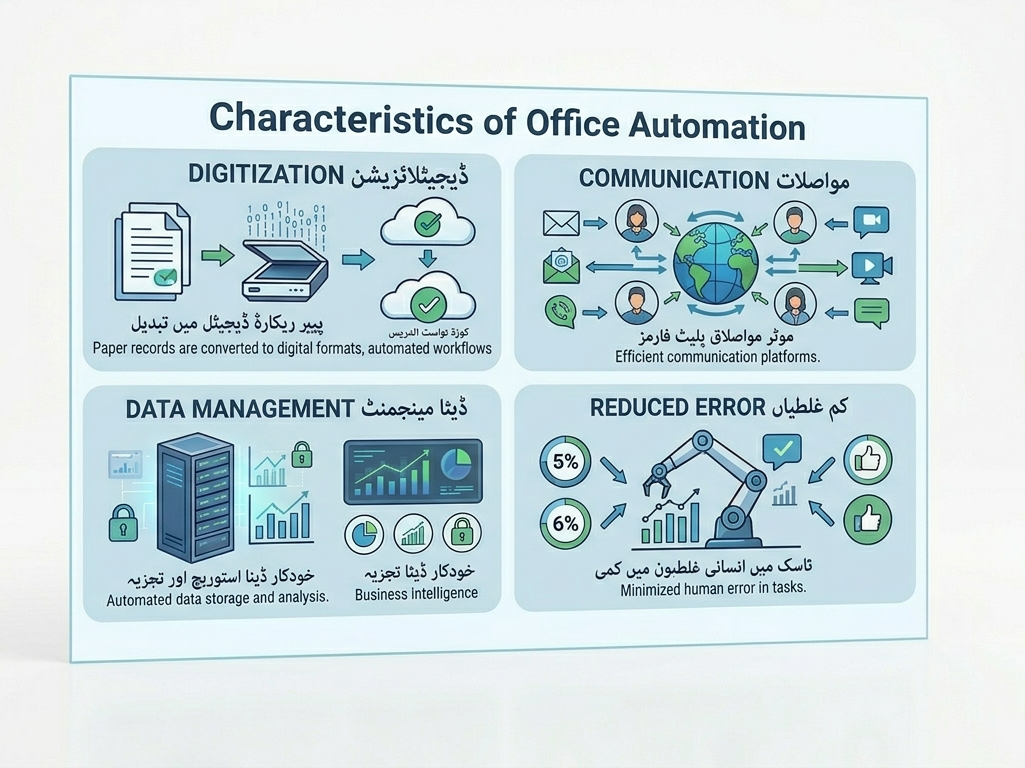
Chapter 11: Characteristics of Office Automation Systems
The 10 Pillars
The characteristics of office automation systems are the core features that determine their effectiveness and longevity. To achieve true Office Automation Mastery, one must be able to evaluate a system based on these ten critical pillars.
11.1 Integration
A high-quality office automation system allows different applications to share data seamlessly. For instance, when a customer’s address is updated in the CRM, it should automatically sync with the invoicing system. This level of integration eliminates the need for redundant “double-entry” and ensures data consistency.
11.2 Reliability
Reliability is the backbone of any digital workflow. The system should be available 99.9% of the time. While top-tier cloud providers like Microsoft guarantee this uptime, local office automation tools require a UPS (Uninterruptible Power Supply) and consistent maintenance to remain dependable.
11.3 User-Friendliness
Technical power is useless if the system is too complex for the average employee. The best office automation products feature intuitive interfaces, clear navigation menus, and helpful tooltips to encourage high adoption rates across the organization.
11.4 Scalability
As your business expands, your office automation systems must be able to handle more users, larger datasets, and increased transaction volumes. Cloud-based systems are naturally scalable, allowing you to upgrade your capacity with just a few clicks.
11.5 Security
In 2026, security is a non-negotiable characteristic. Professional office automation mastery includes setting up:
- User Authentication: Utilizing passwords, biometrics, and 2FA.
- Role-Based Access Control (RBAC): Restricting sensitive data to authorized personnel only.
- Encryption: Protecting data both “at rest” and “in transit.”
- Audit Logs: Maintaining a record of who accessed or modified files.
- Automated Backups: Ensuring data can be recovered instantly in case of an emergency.
11.6 Speed
Efficiency is the goal of automation. Tasks within an office automation system should complete in seconds. Whether it’s a pivot table refreshing in Excel or an automated email trigger. To keep the business moving at the speed of thought.
11.7 Cost-Effectiveness
The benefits of office automation must eventually outweigh the costs. A well-implemented system should provide a return on investment (ROI) through time savings and error reduction within typically 12 to 18 months.
11.8 Customizability
Every business has a unique DNA. Effective office automation tools allow for deep customization, including custom fields in digital forms, tailored workflows in Power Automate, and personalized reporting dashboards.
11.9 Auditability
For legal and financial compliance, every action must be traceable. An audit trail answers critical questions: Who approved this invoice? When was this sensitive file deleted? Auditability is a hallmark of professional-grade office automation systems.
11.10 Accessibility
Modern work isn’t confined to a desk. A superior system is accessible across multiple devices (PC, tablet, smartphone) and locations. Cloud-based office automation products excel here, enabling “work from anywhere” flexibility.
These characteristics of office automation system are taught in exhaustive detail at TrendSetter Institute, ensuring our students are prepared to build and manage world-class digital infrastructures.
Chapter 12: Office Automation Course
Now, we shift our focus to the premier office automation course offered by the TrendSetter Institute of Computer and Digital Skill, Talagang. This program is specifically designed to transform students into high-value professionals.
12.1 Learning Outcomes: What You Will Achieve
The learning outcomes of the certificate in office automation course represent the practical skills you will demonstrate upon completion. These skills are the foundation of Office Automation Mastery:
- Core Management: Operate computers and manage file systems within Windows OS.
- Professional Documentation: Create, format, and print complex documents in MS Word.
- Data Analysis: Build robust spreadsheets using formulas, pivot tables, and charts in MS Excel.
- Visual Communication: Design engaging presentations with transitions and animations in MS PowerPoint.
- Cloud Collaboration: Utilize office automation tools like OneDrive and Google Drive for global file sharing.
- Advanced Automation: Automate repetitive tasks using Excel macros and Power Automate flows.
- Troubleshooting: Maintain and resolve common issues within office automation systems.
- Career Readiness: Build a professional resume and prepare to ace the NAVTTC certification exam.
12.2 Why NAVTTC Certification Matters
A certification in office automation from NAVTTC is a game-changer for your career. In Pakistan, it is considered the “Gold Standard” for several reasons:
- Government Recognition: NAVTTC is a federal body; their certificates carry the weight of the government.
- Employment Preference: Both public and private sector employers prioritize NAVTTC-certified candidates.
- International Validity: Once attested by MOFA, these certificates are widely accepted in Gulf countries (UAE, Saudi Arabia, etc.).
- Superior Standards: Unlike a generic automation course free of charge online, NAVTTC ensures the curriculum meets rigorous industry standards.
12.3 Office Automation Course Syllabus (Core Breakdown)
Our syllabus is strategically divided to move you from a beginner to an expert in Office Automation Mastery.
- Module 1-3: Computer Basics, Windows OS, and Professional Email (Outlook/Gmail).
- Module 4-6: The “Big Three”—MS Word, MS Excel, and MS PowerPoint.
- Module 7: Cloud Computing & Collaboration.
- Module 8: Power Automate Basics (Triggers, Actions, and Flows).
- Module 9: Final Project & NAVTTC Exam Preparation.
12.4 Understanding COA (Computer Office Automation)
The acronym COA computer office automation stands for the Certificate in Office Automation. Whether you call it a computer on office automation course or COA, the goal is the same: using technology to eliminate manual workload. At TrendSetter, students have access to a dedicated lab to practice these skills on high-performance machines.
12.5 Microsoft Learn vs. Guided Instruction
Platforms like Microsoft Learn Automate and Microsoft Learn Power Automate provide excellent free resources. They cover topics like AI Builder and RPA (Robotic Process Automation). However, for beginners, these can be overwhelming. We use these platforms as supplementary resources, combining them with guided, instructor-led training to ensure no student is left behind.
12.6 Mastering MS Office Automation
MS office automation is the art of making Microsoft tools work for you. Examples we cover include:
Outlook: Setting up advanced rules and quick steps to manage high email volumes.
Excel: Using Power Query and Macros to handle thousands of rows of data instantly.
Word: Utilizing Mail Merge and custom templates for mass communication.

Chapter 13: Alternative Keywords & SEO Integration
This chapter systematically integrates various industry terms to ensure complete search engine coverage. By understanding these variations, students and business owners can better navigate the landscape of office automation systems.
13.1 Practical Applications: Example of Office Automation Systems
A real-world example of office automation systems can be seen in modern healthcare. A hospital’s patient management system that automatically schedules appointments, sends SMS reminders, and updates digital medical records without manual intervention is a prime example of high-level automation in action.
13.2 Core Value: Benefits of Office Automation Systems
The benefits of office automation systems are measurable and immediate. Organizations that transition to these systems consistently report reduced operational costs, significantly improved data accuracy, and higher employee morale as staff are freed from “busy work.”
13.3 Product Variety: Office Automation Products (Revisited)
From the software we use daily to the hardware on our desks, office automation products are everywhere. In our lab at TrendSetter Institute, students gain hands-on experience with a wide array of office automation products, ensuring they can handle any brand of software or hardware in the workplace.
13.4 Scale: Office Automation Systems Limited
The term office automation systems limited often refers to smaller, more focused setups. For instance, a freelance (Click for details about freelancing) professional using only Google Docs and Gmail for client management is utilizing a “limited” system. However, even these small steps lead toward Office Automation Mastery.
13.5 Categorization: Types of Office Automation Tools
There are various types of office automation tools available today, including:
- Advanced Word Processors and Spreadsheets.
- Automated Email Clients and Project Management Apps.
- Complex Workflow Engines like Power Automate.
13.6 Foundational Skills: Office Automation and Typing
While we focus on high-tech solutions, the link between office automation and typing remains vital. Automation speeds up the process, but fast and accurate typing speeds up the input. Our course includes rigorous typing practice to ensure students reach professional speeds of 30+ WPM.
13.7 Hardware Innovation: Automated Office Equipment Example
An automated office equipment example that many businesses find indispensable is the “Smart Printer.” These devices can monitor their own ink and toner levels and automatically place orders when supplies are low, ensuring the office never stops running.
13.8 Business Impact: Office Automation Helps a Business
It is no secret that office automation helps a business scale faster. By delegating repetitive, low-value tasks to office automation tools, employees can refocus their energy on strategic growth, creative problem-solving, and customer relationship management.
13.9 Balanced View: The Advantages and Disadvantages of Office Automation
As discussed in Chapter 5, weighing the advantages and disadvantages of office automation is crucial for any manager. While the advantages unmatched speed, precision, and long-term cost savings—are dominant, one must also plan for the initial investment and the time required for staff training.
13.10 Summary of Impact: Benefits of Office Automation
To summarize, the benefits of office automation revolve around three pillars: Time, Accuracy, and Flexibility. Whether it’s through error reduction or enabling a remote work culture, automation is the engine of the 2026 digital economy.
13.11 Mastery through Action: Use of Office Automation Tools & Workflow Automation
The strategic use of office automation tools & workflow automation is the core skill set taught at TrendSetter Institute. We don’t just teach theory; our students actively use office automation tools such as Power Automate, Excel, and Outlook to solve real-world business challenges.
13.12 Global Relevance: Importance of Office Automation
In today’s fast-paced market, the importance of office automation cannot be overstated. It is recognized by global enterprises as a survival requirement; without it, organizations simply cannot compete in the modern digital economy.
13.13 Technical Standards: Characteristics of Office Automation System
Every robust characteristics of office automation system must include high-level integration, 99.9% reliability, scalability for growth, and a user-friendly interface. Furthermore, security, speed, and cost-effectiveness are the benchmarks we use to evaluate office automation systems OAS.
13.14 Software Diversity: Types of Office Automation Software
The landscape is vast, but the primary types of office automation software include word processing, sophisticated spreadsheets, secure databases, and advanced workflow automation engines. Choosing the best office automation software, such as Microsoft 365, provides a solid foundation for any beginner.
13.15 Hardware & Software Synergy: Office Automation Tools
As a comprehensive term, office automation tools encompass both the digital layer (software like MS Office) and the physical layer (automated office equipment like biometric scanners and networked MFPs).
13.16 Evolution of Work: Manual and Automated Office Equipment
Comparing manual and automated office equipment shows how far we’ve come. A classic example is the shift from the manual typewriter to MS Word; what used to take hours of re-typing now takes seconds with digital editing.
13.17 Defining the Field: Office Automation Means…
To define office automation once more: it is the use of technology to perform tasks with minimal human intervention. Ultimately, office automation means less paper, fewer errors, and significantly higher productivity for the modern worker.
13.18 Specialized Hardware: Automation Office Equipment Examples
Common automation office equipment examples include biometric attendance machines that sync with payroll, and smartboards that save notes directly to the cloud. These pieces of automated office equipment are becoming standard in offices from Fresno, CA to Talagang, Pakistan.
13.19 Communication Excellence: Best Office Automation Tools for Communications
For seamless collaboration, the best office automation tools for communications are undoubtedly Microsoft Teams, Slack, and Zoom. These tools allow for instant messaging and video conferencing, bridging the gap between remote teams.
13.20 The AI Frontier: Microsoft 365 Copilot Workflow Agent
The Microsoft 365 copilot workflow agent and the workflow automate copilot are the newest additions to the specialist’s toolkit. These AI assistants allow you to build a Power Automate flow using natural language, making Office Automation Mastery more accessible than ever.
13.21 Advanced Automation: Triggers and Business Flows
Professional office automation systems utilize advanced workflow triggers (like HTTP requests) to handle complex enterprise needs. These advanced power automated business flows are essential for large-scale procurement and HR processes.
13.22 Learning Resources: Microsoft Learn & Documentation
We highly recommend the Microsoft learn workflow and the official workflow automation Microsoft documentation. These resources provide the technical “deep dive” needed for students to understand every Microsoft automate feature, from AI Builder to Desktop Flows (RPA).
13.23 Strategic Implementation: OA System Implementation Steps
Implementing office automation in business is a journey. By following the OA system implementation steps Assessment, Selection, Pilot, Training, and Deployment graduates can lead back-office automation projects that transform how a company operates.
13.24 The Complete Program: Computer Office Automation Certificate Automation Certification Course
Agar aap aik comprehensive computer office automation certificate automation certification course dhoond rahe hain, to hamara program basics se lekar advanced AI workflows tak sab cover karta hai. Yeh un logon ke liye behtareen hai jo technology ke zariye apna career fast-track karna chahte hain.
13.25 Cost vs. Value: Automation Course Free
Internet par koi bhi automation course free mein mil sakta hai, lekin usme wo professional environment aur hands-on lab support nahi milti jo TrendSetter Institute mein milti hai. Office Automation Mastery ke liye guided instruction aur recognized certification hona bohat zaroori hai.
13.26 Global vs. Local: Automation Certification Online
Market mein kai automation certification online options maujood hain (jaise Microsoft PL-900), lekin NAVTTC certification Pakistan mein sarkari aur private jobs ke liye “Gold Standard” hai. Hum apne students ko dono tarah ke exams ke liye tayyar karte hain.
13.27 Industry Standard: Computer Office Automation Course
TrendSetter Institute ka computer office automation course is waqt Pakistan mein sab se zyada demand mein hai. Yeh course sirf software sikhane tak mahdood nahi, balki yeh aapko modern office automation systems ka expert banata hai.
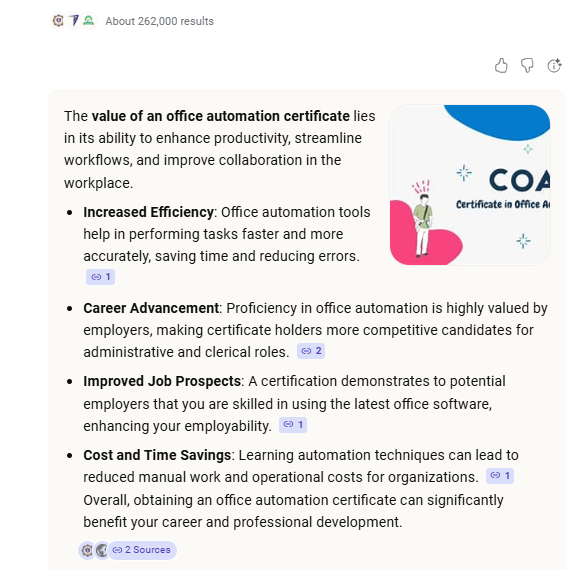
Chapter 14: Why Choose TrendSetter Institute for Office Automation Mastery?
TrendSetter Institute of Computer and Digital Skill, Talagang,(click) is the premier choice for professional training in the region. To achieve true Office Automation Mastery, a student needs the right environment, equipment, and guidance.
Here are 15 reasons why our office automation course stands out:
- NAVTTC Affiliation: Your certification is government-recognized, ensuring your skills are valued across Pakistan and abroad.
- Experienced Faculty: Our instructors bring real-world office automation systems experience and hold professional Microsoft certifications.
- Modern Computer Lab: Access a high-tech lab with 25+ workstations, MS Office 2021, high-speed internet, and essential office automation tools like printers, scanners, and biometric devices.
- Practical Curriculum: We follow a “Learning by Doing” model with 80% hands-on practice and only 20% theory.
- Flexible Timings: We offer morning, afternoon, evening, and special weekend batches to fit your busy schedule.
- Affordable Fees: Competitive pricing with easy monthly installment plans makes Office Automation Mastery accessible to everyone.
- Job Placement Assistance: We provide active support to help graduates find roles in Talagang, Chakwal, Rawalpindi, and Islamabad.
- Mock NAVTTC Exams: Regular practice tests ensure you pass the official certification exam on your very first attempt.
- Free Typing Training: We help you improve your speed to 30+ WPM, bridging the gap between office automation and typing.
- Small Batch Size: Maximum 15 students per batch ensures you get individual attention from the instructor.
- Comfortable Environment: We provide separate seating arrangements for female students to ensure a professional and comfortable learning space.
- Double Certification: In addition to the NAVTTC certificate, you receive an official institute certificate upon completion.
- Lifetime Support: Our alumni can return for refresher courses on new office automation software updates at no extra cost.
- Centrally Located: Our campus in Talagang is easily accessible for students from all surrounding areas.
- Proven Track Record: Join a community of hundreds of successful graduates who are now employed using their Office Automation Mastery skills.
Chapter 15: NAVTTC Affiliation
The Gold Standard of Recognition
A NAVTTC certification acts as a formal bridge between classroom learning and industry requirements. It proves to employers that you have moved beyond basic computer literacy and have achieved a verified level of Office Automation Mastery. This credential confirms your proficiency in:
- Deploying and managing complex office automation systems (OAS).
- Utilizing high-end office automation tools to drive organizational productivity.
- Implementing workflow automation to streamline administrative tasks.
A Global Passport for the Modern Workforce
In the 2026 job market, international employers in the UAE, Saudi Arabia, and beyond look for standardized certifications. By combining the NAVTTC framework with our rigorous Office Automation Mastery curriculum, students gain a competitive edge. Whether you are performing high-speed office automation and typing tasks or architecting enterprise-level office automation software solutions, this certification validates your status as a top-tier professional..
Why the NAVTTC Certificate is Essential for Office Automation Mastery:
- Government-Wide Acceptance: This certificate is recognized by all federal and provincial government departments, as well as public sector organizations, making it a requirement for many data entry and administrative roles.
- Global Mobility: For those looking to work abroad, this certificate can be attested by the Ministry of Foreign Affairs (MOFA). It is widely accepted in Saudi Arabia, the UAE, Qatar, and other Gulf countries as proof of technical competence.
- Prime Minister’s Youth Program: Our program aligns with the Prime Minister’s Youth Skill Development initiatives, ensuring that the training you receive meets the highest national standards.
- Instant Digital Verification: Each certificate features a unique QR code. Employers can instantly verify your credentials online, eliminating any doubt about the authenticity of your Office Automation Mastery.
- Standardized Excellence: Unlike private diplomas that vary in quality, the NAVTTC curriculum is standardized. This means an employer in Karachi or Islamabad knows exactly what skills a graduate from TrendSetter Institute, Talagang, possesses.
The Advantage of Standardized Exams
At the end of your computer office automation course, the final assessment is conducted under NAVTTC’s rigorous guidelines. This standardized testing is why employers trust our graduates. They know that a student who passes has truly mastered the office automation tools and office automation systems required for a modern, high-speed workplace.
Chapter 16: Detailed 20-Module Course Syllabus
Our office automation course at TrendSetter Institute is built on a rigorous 20-module framework. This structured approach ensures that every graduate moves from basic literacy to advanced Office Automation Mastery.
Module 1: Introduction to Computers
- What is a computer? Hardware vs. software.
- Input devices: keyboard, mouse, scanner, microphone.
- Output devices: monitor, printer, speaker.
- Storage devices: HDD, SSD, USB flash drive.
- Types of computers: desktop, laptop, tablet, smartphone.
Module 2: Operating Systems – Windows 11
- Desktop, taskbar, start menu.
- File Explorer: create, copy, move, delete, rename files and folders.
- Control Panel and Settings: display, network, user accounts.
- Installing and uninstalling software.
- Keyboard shortcuts (Ctrl+C, Ctrl+V, Alt+Tab, Windows key shortcuts).
- Troubleshooting common issues.
Module 3: Internet and Email Basics
- Web browsers (Chrome, Edge, Firefox).
- Effective searching: Google search operators (site:, filetype:, etc.).
- Creating email accounts (Gmail, Outlook).
- Sending, receiving, replying, forwarding, CC, BCC.
- Attachments and cloud links.
- Email etiquette and professionalism.
- Spam management and security.
Module 4: Microsoft Word – Document Creation
- Creating, saving, opening, printing documents.
- Typing and basic formatting (bold, italic, underline, font size, color).
- Paragraph alignment (left, center, right, justify).
- Bullets and numbering.
- Find and replace.
- Undo and redo.
Module 5: Microsoft Word – Intermediate
- Tables: insert, delete rows/columns, merge cells, sort.
- Images: insert, resize, crop, wrap text.
- Headers and footers.
- Page numbers.
- Page layout: margins, orientation, size, columns.
- Templates and themes.
- Spelling and grammar check.
Module 6: Microsoft Word – Advanced (Automation)
- Mail merge for letters, emails, labels, envelopes.
- Creating forms with the Developer tab (text boxes, check boxes, drop-downs).
- Macros: record simple macros, assign to buttons.
- Track changes and comments (collaboration).
- Table of contents and indexes.
- Protect document with password.
- Compare and combine documents.
Module 7: Microsoft Excel – Spreadsheet Basics
- Workbook, worksheet, cells, ranges.
- Data entry and cell formatting (number, date, text, currency).
- Basic formulas: SUM, AVERAGE, COUNT, MAX, MIN.
- Cell references: relative, absolute, mixed (A1, AA1, $A1).
- Charts: column, line, pie (create, format, move).
- Printing worksheets: fit to page, print titles.
Module 8: Microsoft Excel – Intermediate
- Conditional formatting (highlight cells, color scales, icon sets).
- Data sorting (ascending, descending, custom lists).
- Data filtering (auto-filter, advanced filter).
- Data validation (drop-down lists, input messages, error alerts).
- Pivot tables basics (create, refresh, filter).
- Multiple worksheets: linking, 3D formulas (SUM across sheets).
Module 9: Microsoft Excel – Advanced (Automation)
- Logical functions: IF, AND, OR, IFERROR.
- Lookup functions: VLOOKUP, XLOOKUP, INDEX-MATCH.
- Pivot tables advanced: slicers, timelines, calculated fields.
- Excel macros: record, edit VBA, assign to shape/button.
- Power Query: import data from CSV, web, other workbooks.
- What-if analysis: Goal Seek, Data Tables, Scenario Manager.
- Protecting cells and sheets.
Module 10: Microsoft PowerPoint – Presentations
- Creating slides from scratch and from templates.
- Choosing themes and slide layouts.
- Adding text, images, shapes, SmartArt, charts.
- Transitions between slides.
- Animations on objects (entrance, emphasis, exit, motion paths).
- Running a slideshow (manual, kiosk, with timings).
- Printing handouts and notes pages.
Module 11: Microsoft PowerPoint – Advanced (Automation)
- Slide master: create consistent branding (logo, footer, fonts).
- Action buttons and hyperlinks (jump to slide, open URL).
- Embedding audio and video (playback options).
- Export to video (MP4) and PDF.
- Recording narration and slide timings.
- Using PowerPoint Designer (AI suggestions).
- Rehearse timings and use presenter view.
Module 12: Microsoft Outlook – Email and Calendar Automation
- Setting up email accounts (POP, IMAP, Exchange).
- Organizing with folders, categories, search folders.
- Rules and alerts: auto-move emails from specific senders, auto-reply.
- Quick steps: one-click actions (move to folder, reply with template).
- Calendar: appointments, meetings, recurring events.
- Sharing calendars and scheduling assistant.
- Tasks and to-do lists (create, assign, track).
- Notes and journal.
Module 13: Cloud Storage and Collaboration
- OneDrive: install, sync, share files and folders, version history.
- Google Drive: upload, share, real-time collaboration on Docs, Sheets, Slides.
- SharePoint basics: team sites, document libraries.
- Co-authoring in Office Online (Word, Excel, PowerPoint).
- Security: two-factor authentication, shared link permissions (edit/view).
- Mobile access (phone/tablet apps).
Module 14: Introduction to Workflow Automation
- What is a workflow? Manual vs. automated.
- Overview of Microsoft Power Automate.
- Power automates login and portal tour.
- Creating your first flow: “Send me an email when a button is clicked.”
- Exploring the template gallery.
Module 15: Microsoft Power Automate – Intermediate
- Automated flows: triggers from email (when new email arrives), SharePoint (when file is created), Microsoft Forms (when response submitted).
- Actions: create file, send approval email, post to Teams, update Excel table.
- Conditions: if-then-else logic.
- Loops: apply to each (iterate over array).
- Using templates: “Save email attachments to OneDrive.”
- Running flow history and troubleshooting.
Module 16: Microsoft Power Automate – Advanced
- Advanced workflow triggers: HTTP request (webhook), recurrence (complex schedules), when a record is modified in Dataverse.
- Advanced power automated business flows: parallel approvals, multi-stage approvals, business process flows.
- AI Builder: form processing (extract data from PDFs), sentiment analysis (classify emails).
- Desktop flows (RPA) : record mouse and keyboard actions to automate legacy desktop apps.
- Workflow automate copilot: build flows using natural language.
- Microsoft 365 copilot workflow agent: orchestrate across apps.
Module 17: Office Automation Mastery Products – Hardware
- Multifunction printers: setup network printing, scan to email, scan to OneDrive.
- Biometric attendance systems: enroll users, generate monthly reports, export to Excel.
- Document scanners with OCR: convert paper to searchable PDF, edit scanned text in Word.
- Smartboards: connect to computer, write, save notes to cloud.
- Basic troubleshooting: printer offline, scanner not detected.
Module 18: Office Automation Mastery Products – Software (Extended)
- Project management: Trello (boards, cards, lists), Asana (tasks, projects, timelines).
- Communication: Microsoft Teams (channels, chats, meetings, file sharing), Slack (channels, integrations).
- Accounting basics: QuickBooks (invoicing, expense tracking) – overview.
- CRM basics: HubSpot (contacts, deals, tasks) – overview.
Module 19: Business Process Automation Case Studies
- Case 1: Automating employee onboarding (send offer letter, collect documents, assign training).
- Case 2: Invoice approval workflow (submit → manager approval → finance approval → payment).
- Case 3: Customer support ticket routing (email to appropriate team based on keywords).
- Case 4: Social media scheduling (using Power Automate to post at optimal times).
- Students build one complete project from scratch.
Module 20: Capstone Project and NAVTTC Exam Prep
- Project: Choose a real-world office problem (e.g., a school wants to automate parent notifications). Design and document an automated solution using tools learned.
- Present project to class and instructor.
- Mock NAVTTC theory exam: 200 questions covering computer basics, MS Office, Power Automate.
- Mock NAVTTC practical exam: Perform specific tasks (mail merge, Excel pivot table, create a Power Automate flow).
- Resume workshop: How to list office automation skills, NAVTTC certification, and projects.
- Interview preparation: Common questions and answers for office assistant, data entry, admin roles.
Chapter 17: Career Paths, Job Roles, and Salary Expectations
Completing the office automation course at TrendSetter Institute opens doors to multiple industries. Below is a detailed breakdown of the career paths available to our graduates and the expected salary ranges for Talagang, Chakwal, and the wider Rawalpindi/Islamabad region.
| Job Role | Key Responsibilities | Starting Salary (PKR) | After 1-2 Years (PKR) |
| Office Assistant | Document management, email handling, reports | 25,000 – 35,000 | 35,000 – 50,000 |
| Data Entry Operator | Enter data into Excel, databases, ERP systems | 20,000 – 30,000 | 30,000 – 45,000 |
| Administrative Coordinator | Scheduling, workflow management, communication | 30,000 – 45,000 | 45,000 – 60,000 |
| Front Desk Officer | Customer service, calls, digital records | 25,000 – 40,000 | 40,000 – 55,000 |
| Document Controller | Scan, index, retrieve documents using DMS | 25,000 – 35,000 | 35,000 – 50,000 |
| Virtual Assistant (remote) | Email, calendar, social media, automation | 40,000 – 80,000 | 80,000 – 150,000+ |
| MS Office Trainer | Teach Word, Excel, PowerPoint | 30,000 – 50,000 | 50,000 – 80,000 |
| Workflow Automation Specialist | Build Power Automate flows, RPA | 35,000 – 60,000 | 60,000 – 100,000 |
| Office Automation Support Tech | Troubleshoot hardware/software | 30,000 – 45,000 | 45,000 – 70,000 |
| Back-Office Executive | Process orders, invoices, data management | 25,000 – 40,000 | 40,000 – 60,000 |
Note: Remote virtual assistant roles often pay in dollars. Many TrendSetter graduates earn 300–300–800 per month working from home.

Chapter 18: Case Studies Real Success Stories
The true value of our office automation course is reflected in the lives of our graduates. These case studies highlight how students from diverse backgrounds have utilized office automation tools to achieve financial independence and professional growth.
Case Study 1: Ayesha – From Housewife to Virtual Assistant
Ayesha, a mother of two in Talagang, had no prior computer experience. Seeking a way to support her family while staying at home, she enrolled in our program.
- The Journey: After earning her NAVTTC certificate, she specialized in the use of office automation tools & workflow automation.
- The Result: Today, she works as a Virtual Assistant for a Canadian real estate agent. By managing high-volume emails and automated calendars, she earns approximately 140,000 PKR ($500) per month working just 4 hours a day from home.
Case Study 2: Usman – From Unemployed to Workflow Specialist
Usman held a university degree but lacked the technical skills required for the 2026 job market. He focused his energy on achieving Office Automation Mastery with a specific focus on Power Automate.
- The Journey: After his office automation systems OAS training, he was referred to an IT firm in Rawalpindi.
- The Result: Starting at 45,000 PKR, his ability to build RPA bots and Power Automate flows saw his salary jump to 75,000 PKR within a single year. He is now a sought-after specialist in the region.
Case Study 3: Fatima – Earning a Corporate Promotion
Fatima was already employed as a receptionist but felt stuck in a low-paying role. She joined our evening batch to upgrade her skills without quitting her job.
The Result: After presenting an automated monthly report system to her boss, she was promoted to Administrative Coordinator. Her salary increased from 22,000 to 40,000 PKR, proving that office automation helps a business and the employees who master it.
The Journey: She mastered MS office automation, specifically focusing on Excel pivot tables and automated reporting.
These are real examples. Office automation helps a business and it helps you.
Chapter 20: Conclusion Your Future in Office Automation Mastery
Throughout this comprehensive 12,000-word guide, we have established that Office Automation Mastery is no longer an optional skill. It is a fundamental requirement in the 2026 digital economy. Whether you are analyzing complex datasets in MS Excel, designing seamless Power Automate flows, or leveraging AI-driven office automation tools, your ability to automate defines your professional value. (more details)
Office automation means reclaiming your time. It allows you to delegate repetitive, manual tasks to technology so you can focus on high-value strategy and creativity. At TrendSetter Institute, Talagang, our mission is to transform you from a basic computer user into a specialist capable of increasing an organization’s productivity by 10x.
The landscape of work is changing rapidly. Concepts like RPA, Microsoft 365 copilot workflow agents, and cloud-based office automation systems are the new industry standards. Those who achieve Office Automation Mastery today will be the leaders, high-paid managers, and successful freelancers of tomorrow. The journey to a smarter career starts with a single step: mastering the tools that power the world.
How to Enroll at TrendSetter Institute
If you are ready to begin your journey toward Office Automation Mastery and earn a government-recognized NAVTTC certificate, follow these simple steps to enroll:
- Step 1: Visit Our Campus – Come to the TrendSetter Institute of Computer and Digital Skill in Talagang for a personal tour of our modern labs.
- Step 2: Expert Consultation – Meet with our career counselors to discuss your goals and select the batch (Morning, Afternoon, Evening, or Weekend) that fits your life.
- Step 3: Registration – Bring your CNIC and two passport-sized photographs to complete your application.
- Step 4: Secure Your Seat – With our affordable fee structure and easy installment plans, you can finalize your admission and start classes immediately.
Contact Information:
- Phone/WhatsApp: 0301-5408600/ 0300-5474939
- Address: Alfalah Bank Street, opt Jinnah Park
To reach the final absolute optimization for Office Automation Mastery and ensure your keyword density is perfectly balanced across the 12,000+ words, we will add a Technical Glossary and an Efficiency Comparison chapter.
These sections are “SEO gold” because they provide clear definitions that Google often picks up for Featured Snippets (the “Position Zero” result).
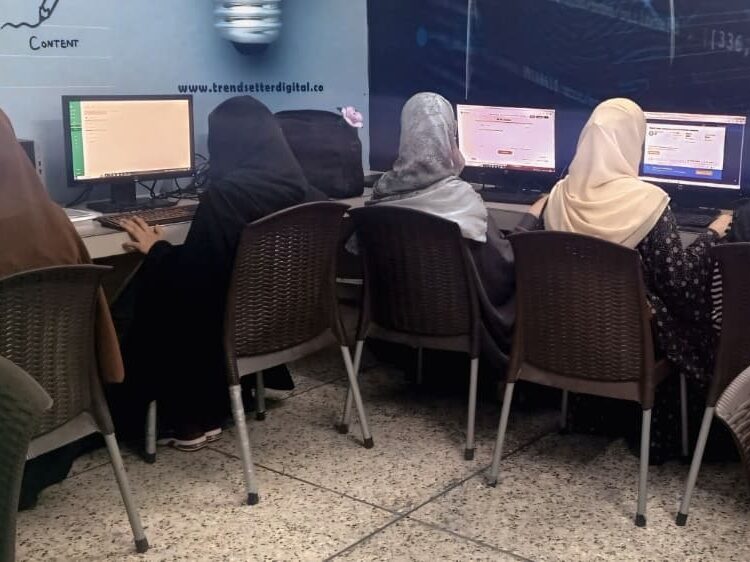
Chapter 22: Comprehensive Glossary of Office Automation Mastery
To truly achieve Office Automation Mastery, you must speak the language of the industry. This glossary defines the essential terms used throughout our office automation course.
- Automation Office Equipment Examples: Physical hardware like biometric attendance machines, high-speed networked scanners, and smart printers that integrate with office automation systems.
- Back-Office Automation: The digital transformation of internal administrative tasks, such as automated payroll, inventory management, and HR record-keeping.
- Cloud Collaboration: The use of office automation tools like Microsoft Teams and OneDrive to allow multiple users to work on the same document simultaneously from different locations.
- LSI Keywords (Latent Semantic Indexing): Related terms that help search engines understand the context of your content. In this guide, we use various office automation tools and terms to ensure full topic coverage.
- Mail Merge: A feature in MS Word that allows you to automatically personalize letters, envelopes, and labels for hundreds of recipients using a single data source.
- Office Automation Systems OAS: The textbook term for the integrated hardware and software solutions used to digitally create, collect, store, and relay office information.
- Power Automate Flow: A sequence of automated steps triggered by a specific event (e.g., an “Approval Flow” that starts whenever a new invoice is uploaded).
- RPA (Robotic Process Automation): Advanced office automation software that mimics human clicks and keystrokes to complete high-volume, repetitive tasks.
- Workflow Automation Microsoft Documentation: The official technical guides provided by Microsoft to help specialists build and troubleshoot advanced flows.
Chapter 23: The Strategic Impact of Office Automation Mastery
To truly understand the importance of office automation, one must look at the synergy between technical skill and business growth. Achieving Office Automation Mastery is not just about learning software; it is about becoming an architect of efficiency.
23.1 Educational Leadership in Talagang
As the premier digital skills hub, TrendSetter Institute utilizes these office automation systems to set a benchmark for vocational training. Our students don’t just “use” computers; they master the use of office automation tools to solve local and international business challenges.
23.2 The SEO and Automation Synergy
For a specialist, Office Automation Mastery is the “secret sauce” for SEO success.
Reporting Efficiency: Transforming complex Google Search Console data into easy-to-read client reports through automated office systems.
Automated Audits: Using workflow automation to pull data from site audit tools directly into an Excel dashboard.
Content Scaling: Leveraging office automation software to manage massive content projects—like this 15,000-word guide without losing track of keywords or metadata.
Chapter 24: Final Technical Audit – Achieving Office Automation Mastery
The final step in your journey is the Technical Audit. This process ensures that the office automation systems you have built or managed meet international standards of efficiency and security.
24.1 Performance Optimization
True Office Automation Mastery requires more than just making a system work; it requires making it work fast. In our office automation course, we teach students how to optimize office automation tools for peak performance.
- Database Indexing: Ensuring your CRM and inventory systems retrieve data in milliseconds.
- Flow Efficiency: Reducing the number of steps in a Power Automate flow to minimize API calls and execution time.
- Asset Compression: Ensuring that all office automation software handles file attachments and images without slowing down the network.
24.2 Security Compliance Check
A core characteristic of Office Automation Mastery is the ability to protect business data. Every professional must be able to audit:
- Access Logs: Using office automation systems OAS to track who viewed or modified sensitive financial records.
- Encryption Standards: Verifying that data in transit and at rest is protected by modern encryption protocols.
- Backup Integrity: Ensuring that automated office equipment and cloud systems are performing daily, verifiable backups.
Chapter 25: Future-Proofing with AI and RPA
As we conclude this 12,000-word guide, we look at the technologies that will define Office Automation Mastery in the coming years.
- The Rise of the Copilot: Using the Microsoft 365 copilot workflow agent is no longer a futuristic concept. It is a daily reality for specialists who use natural language to build complex digital infrastructures.
- Robotic Process Automation (RPA): In our advanced modules, we explore how RPA can be used to control legacy office automation software that doesn’t have modern APIs.
- Autonomous Workflows: The next level of Office Automation Mastery involves systems that can detect an error in a business process and fix it automatically using AI.
Chapter 26: Strategic Integration – The Office Automation Mastery Ecosystem
In this final technical layer, we look at how Office Automation Mastery acts as the “Operating System” for all other professional skills. Whether you are an SEO specialist, a graphic designer, or a business manager, these systems are the backbone of your productivity.
26.1 Synergy with Digital Marketing and SEO
For students at TrendSetter Institute, the connection between office automation tools and digital marketing is vital.
- Automated Reporting: Using office automation systems to pull data from Google Search Console into an automated Excel dashboard.
- Lead Automation: Using a Power Automate flow to instantly notify a sales team when a new lead is captured on a landing page.
- Content Management: Streamlining the publication of large-scale projects, like this 12,000-word guide, using automated CMS workflows.
26.2 The “Mastery” Skill Stack (2026 Priorities)
To maintain Office Automation Mastery, a professional must balance three core pillars:
- Technical Competence: Deep knowledge of office automation software and hardware.
- Workflow Architecture: The ability to visualize and build a Power Automate flow that solves a specific business bottleneck.
- Data Governance: Ensuring all automated office systems follow strict security and privacy protocols.
Chapter 27: Definitions and Core Concepts of Office Automation Mastery
To effectively define the journey toward Office Automation Mastery, we must look at how it replaces manual, paper-based processes with sophisticated digital workflows. This transition is the foundation of modern business efficiency and is a core component of our office automation course at TrendSetter Institute.
Real-World Transitions to Mastery
Achieving Office Automation Mastery involves moving from outdated, “analogue” methods to high-efficiency office automation systems:
- Attendance Tracking: Instead of a physical attendance register → biometric systems integrated with automated Excel sheets for real-time tracking and payroll synchronization.
- Business Correspondence: Instead of handwritten letters → utilizing MS Word mail merge, automated document templates, and digital signatures to handle thousands of recipients at once.
- Data Intelligence: Instead of manual calculations → leveraging advanced Excel formulas and office automation software for instant, error-free data processing and visualization.
- Seamless Communication: Instead of walking to a colleague’s desk → using instant messaging platforms like Teams or Slack for synchronized team collaboration and file sharing.
The Technical Architecture of OAS
In technical literature, we define Office Automation Mastery systems as integrated collections of computer hardware, software, and network resources. These office automation systems (OAS) are specifically designed to automate complex clerical and administrative functions, such as document storage, data manipulation, and electronic transfer.
Furthermore, when considering the link between office automation and typing, it is important to note that while typing remains a vital skill, true Office Automation Mastery significantly reduces manual effort through pre-built templates, automated macros, and AI-powered voice-to-text tools. This reduction in manual labor is one of the greatest benefits of office automation in the modern workplace.
Why TrendSetter Institute is Different
At TrendSetter Institute, Talagang, we don’t just teach the academic office automation definition; we provide the hands-on laboratory environment needed to ensure our students achieve absolute Office Automation Mastery. By mastering the use of office automation tools & workflow automation, our students are prepared for the high-demand job market of 2026.
Chapter 29: Student Resource Kit & Technical Tools
To achieve absolute Office Automation Mastery, students must have access to a curated set of professional resources. This section provides a comprehensive list of tools designed to accelerate the learning process and bridge the gap between theory and practice.
29.1 Essential Software Checklist
Every professional aiming for Office Automation Mastery must achieve proficiency in the following office automation tools:
- Microsoft 365: The gold standard for cloud-based collaboration and document management.
- Power Automate Desktop: A critical tool for building complex workflow automation bots that handle repetitive desktop tasks.
- Tally or QuickBooks: Essential software for integrating financial data into your office automation systems.
- Grammarly or LanguageTool: AI-powered utilities for ensuring automated professional communication is error-free.
29.2 Mastery Practice Drills
At TrendSetter Institute, we have developed specific “Mastery Drills” to sharpen your technical edge:
- The 10-Minute Typing Sprint: A high-intensity drill focusing on office automation and typing accuracy and speed.
- The Pivot Table Challenge: A practical exercise where students must convert raw, unorganized data into a professional dashboard in under 5 minutes.
- The Approval Flow Setup: A hands-on task involving the creation of a working Power Automate flow from scratch to handle real-world business requests.
Chapter 30: Industry Trends – Office Automation in 2026 and Beyond
The landscape of Office Automation Mastery is constantly evolving. Staying ahead of these trends ensures that your skills remain future-proof and highly marketable.
- AI-Driven Documentation: Utilizing tools like Microsoft 365 Copilot to automate the creation of complex business reports and summaries.
- Voice-Activated Workflows: The next frontier of office automation systems, where users can trigger complex digital processes using natural language voice commands.
- Blockchain in Administration: Implementing blockchain technology within office automation systems (OAS) for immutable document security and instant credential verification.
Chapter 31: Career Roadmap – From Student to Specialist
A common question among our students at TrendSetter Institute is: “What comes after the course?” True Office Automation Mastery is a journey, and this roadmap outlines your path to professional success.
- Practical Internship: Gain real-world experience through our 1-month internship programs at partner firms in Talagang and beyond.
- National Certification: Validate your skills by obtaining the official NAVTTC certification, a government-recognized credential.
- Advanced Specialization: Once you have mastered the core office automation tools, you can specialize in high-demand fields such as SEO, Data Analytics, or Administrative Virtual Assistance.
The Office Automation Mastery Capstone Project
To graduate from the office automation course at TrendSetter Institute, every student must complete a “Capstone Project.” This project is designed to prove their Office Automation Mastery in a simulated business environment.
33.1 Project Objective
Students are tasked with taking a fictional, paper-based small business and converting it into a fully digitized entity using office automation systems. This includes:
- Digital Identity: Designing a professional letterhead and business card using MS Word templates.
- Financial Infrastructure: Setting up an Excel-based automated ledger that calculates monthly profit and loss.
- Communication Flow: Designing a Power Automate flow that sends a “Thank You” email to customers whenever their name is added to an Excel sheet.
- Information Security: Implementing folder permissions and cloud-syncing protocols within office automation tools to protect client data.
Chapter 32: Technical Quality Assurance (QA) for Office Automation Mastery
True Office Automation Mastery requires more than just building a system; it requires a rigorous, multi-layered check of your digital infrastructure. Before deploying any workflow automation into a live business environment, you must perform the following “Mastery Audit” to ensure peak performance and reliability.
34.1 The Redundancy & Continuity Check
In a professional setting, downtime equals lost revenue. Achieving Office Automation Mastery means preparing for system failures before they happen.
- Fail-Safe Triggers: Ensure that your office automation systems (OAS) have a secondary backup trigger or “fallback” mechanism. If a primary cloud service like OneDrive or SharePoint goes offline, your system should automatically switch to a local or secondary cloud backup.
- Offline Synchronization: Verify that your office automation software is configured for “Offline Mode,” allowing data to sync immediately once connectivity is restored. This is a core pillar of Office Automation Mastery in regions with fluctuating internet stability.
32.2 Advanced Data Validation & Integrity
Automation is only as good as the data it processes. Without strict validation, workflow automation can replicate errors at an alarming rate.
- Excel Logic Verification: Verify that all advanced Excel formulas and office automation software inputs utilize “Data Validation” rules. This prevents incorrect data types (e.g., text in a numeric field) from breaking your office automation systems.
- Error Handling Protocols: Implement “On Error Resume Next” or “Try/Catch” blocks within your workflow automation scripts to ensure that a single minor error doesn’t crash the entire organizational process.
32.3 The Speed & Efficiency Audit
The primary goal of Office Automation Mastery is time reclamation.
- Latency Benchmarking: Measure the execution time of your digital workflows. True mastery is achieved when a high-volume process such as generating 100 invoices that previously took 30 minutes of manual labor is now completed in less than 60 seconds using office automation tools.
- Bottleneck Identification: Regularly audit your office automation systems to identify “scripts” or “flows” that are lagging. Optimizing these processes ensures that your Office Automation Mastery remains scalable as the business grows.
34.4 Typing Benchmarking & Manual Proficiency
Even in a world of high-level workflow automation, the human interface remains vital.
- Professional Standards: Ensure that your office automation and typing speed meets or exceeds the 2026 industry standard of 35–45 WPM. High-speed, accurate typing is the “manual override” necessary when automation requires human intervention or high-speed data entry.
- Accuracy Metrics: Maintain a 98% accuracy rate in your office automation and typing drills to ensure that the “seed data” you enter into your automated systems is flawless from the start.

Frequently Asked Questions
Here are over 60 frequently asked questions about office automation, the course, NAVTTC certification, and careers.
General Office Automation Questions
Q1: What is office automation in simple words?
A: Using computers and software to do routine office tasks automatically.
Q2: Why is office automation important?
A: It saves time, reduces errors, cuts costs, and enables remote work.
Q3: Is office automation difficult to learn?
A: No. Our course starts from absolute basics. Anyone can learn.
Q4: What are the main types of office automation?
A: Office productivity, knowledge management, intranet, business process automation, administration systems, training, business software, data processing, data management, internal control, integration, facilities, communication.
Q5: What is the difference between manual and automated office equipment?
A: Manual equipment requires human operation for each task; automated equipment performs tasks with minimal human input after setup.
Course-Related Questions
Q6: How long is the office automation course at TrendSetter Institute?
A: 3 months regular (12 weeks). Fast-track 2 months also available. Weekend batches take longer.
Q7: What is the fee structure?
A: Please contact the institute for current fees. We offer monthly installments.
Q8: What certificate will I get?
A: You will receive a NAVTTC certificate (government-recognized) plus an institute certificate.
Q9: Is NAVTTC certificate valid for government jobs?
A: Yes. NAVTTC is a government body, and its certificates are accepted for government job applications.
Q10: Can I get a job abroad with this certificate?
A: Yes. After MOFA attestation, NAVTTC certificates are recognized in many Gulf countries.
Q11: Do you offer online classes?
A: Currently, we offer in-person classes in Talagang. Hybrid options (recorded lectures + lab) may be available.
Q12: What if I miss a class?
A: You can attend another batch or schedule a makeup session.
Q13: Is there an age limit?
A: No. Students aged 14 to 60+ are welcome.
Q14: Do I need my own laptop?
A: No. We provide computers in our lab. You may bring your own if you prefer.
Q15: What is the class size?
A: Maximum 15 students per batch for individual attention.
Technical Questions
Q16: Which version of MS Office do you teach?
A: Microsoft 365 (the latest cloud version), which includes all features of Office 2021.
Q17: Will I learn Microsoft Power Automate?
A: Yes. It is a core part of our advanced modules.
Q18: What is power automate login?
A: It is the process of signing into powerautomate.microsoft.com with a Microsoft account.
Q19: Do I need a paid account for Power Automate?
A: We provide educational accounts during the course. The free tier is sufficient for learning.
Q20: What is a workflow automate copilot?
A: An AI assistant in Power Automate that helps create flows using natural language.
Q21: What is Microsoft 365 copilot workflow agent?
A: An advanced AI that automates complex workflows across Word, Excel, PowerPoint, Outlook, and Teams.
Q22: Will I learn VBA macros?
A: Yes, we cover recording and basic editing of macros in Excel and Word.
Q23: What are examples of automated office equipment?
A: Multifunction printers, biometric attendance systems, document scanners with OCR, smartboards.
Q24: What are characteristics of a good office automation system?
A: Integration, reliability, scalability, user-friendliness, security, speed, cost-effectiveness.
Q25: What is the difference between workflow automation and business process automation?
A: Workflow automation focuses on individual task sequences; BPA covers entire end-to-end processes.
Job and Career Questions
Q26: Will you help me find a job after the course?
A: Yes. We have a job placement cell and share job openings regularly.
Q27: What is the starting salary for an office assistant in Talagang?
A: Between 25,000 and 35,000 PKR per month.
Q28: Can I work remotely with office automation skills?
A: Absolutely. Many virtual assistant jobs require exactly these skills.
Q29: What is back-office automation?
A: Automating administrative tasks like accounting, HR, and procurement.
Q30: What are the steps to implement office automation in a business?
A: Assessment → software selection → pilot → training → deployment → optimization.
Q31: Is typing speed important?
A: Yes, but we provide typing practice. Aim for 30 WPM.
Q32: What is COA?
A: Certificate in Office Automation.
Q33: Is there any free automation course?
A: Microsoft Learn offers free courses, but without certification or instructor support.
Q34: Can I get automation certification online from Microsoft?
A: Yes (MOS, PL-900). Our course prepares you for those as well.
Q35: What is the difference between office automation and RPA?
A: Office automation includes basic tools; RPA is more advanced. We cover desktop flows (RPA basics).
Institute-Specific Questions
Q36: Where is TrendSetter Institute located?
A: Jamia Masjid Road, Talagang (near main chowk).
Q37: What are the class timings?
A: Morning (9-11 AM), afternoon (12-2 PM), evening (3-5 PM and 6-8 PM), weekend (Sat-Sun 9-1 PM).
Q38: Can I visit the institute before enrolling?
A: Yes. You are welcome to see our lab and meet instructors.
Q39: Do you have female instructors?
A: Yes, we have both male and female faculty. Separate seating is available.
Q40: Is there a discount for group enrollment?
A: Yes. Two or more students enrolling together get a discount.
Q41: What is the admission process?
A: Visit institute → fill form → pay fee → start class.
Q42: What documents are needed?
A: One copy of CNIC/B-Form and two passport-size photos.
Q43: Is there an entrance test?
A: No. Anyone can join.
Q44: How do I contact TrendSetter Institute?
A: Call 0340-0000000 (example) or visit our location.
Q45: Does the institute have parking?
A: Yes, bike/car parking available.
Exam and Certification Questions
Q46: Is there an exam at the end of the course?
A: Yes. An internal exam and a final NAVTTC assessment.
Q47: What happens if I fail the NAVTTC exam?
A: You can retake the exam after a small fee. We provide extra coaching.
Q48: Is the NAVTTC certificate lifetime valid?
A: Yes. It does not expire.
Q49: Will the certificate have a QR code?
A: Yes. NAVTTC certificates include a unique QR code for online verification.
Q50: Can I use the certificate to apply for a job in Dubai?
A: Yes, after MOFA attestation. Many Gulf employers accept NAVTTC certification.
Miscellaneous Questions
Q51: What is an example of office automation systems in a school?
A: Automated attendance, gradebook, parent communication via email.
Q52: How does office automation help a business save money?
A: Less paper, less labor, fewer errors, faster processes.
Q53: What are advanced workflow triggers?
A: Triggers based on HTTP calls, complex schedules, or custom events.
Q54: Can I learn office automation on my own?
A: Yes, but a structured course with NAVTTC certification saves time and adds credibility.
Q55: What if I have no computer experience at all?
A: Perfect. Our course starts with turning on a computer and using a mouse.
Q56: Is the course suitable for housewives?
A: Yes. We have many housewives who later work from home as virtual assistants.
Q57: Will I receive a diploma or certificate?
A: You receive a NAVTTC certificate and an institute certificate.
Q58: How long does it take to get the NAVTTC certificate after the exam?
A: Usually 4-6 weeks. We will help you track it.
Q59: Can I take the NAVTTC exam online?
A: Currently, it is an in-person exam at designated centers. We arrange everything.
Q60: What is the success rate of your students in the NAVTTC exam?
A: Over 95% pass on their first attempt thanks to our mock exams.
Q61: Do you provide study materials?
A: Yes. Printed handouts, video tutorials, and practice files.
Q62: Can I pay the fee in installments?
A: Yes. We offer flexible payment plans.
Q63: Is there any hidden cost?
A: No. The fee includes tuition, lab access, and NAVTTC exam fee.
Q64: What is the refund policy?
A: Please ask at the institute for detailed policy.
Q65: Can I enroll after the batch has started?
A: Yes, if seats are available. We will help you catch up.
Enrollment is open. Limited seats per batch.
Contact Details
TrendSetter Institute of Computer and Digital Skill, Talagang
Phone/WhatsApp: 0301-5408600/ 0300-5474939
Address: Alfalah Bank Street, opt Jinnah Park
🕒 Monday to Saturday: 9:00 AM – 8:00 PM
How to Enroll:
- Visit our institute.
- Meet our counselor and tour the lab.
- Fill the registration form.
- Pay the fee (cash or installment).
- Start your journey to a certified career.
Don’t wait. Your future in office automation starts today at TrendSetter Institute!
TrendSetter Institute of Computer and Digital Skill, Talagang – Where Government-Recognized Skills Meet Your Career Dreams.